



Skip to content

Turn emails and documents into data you can use

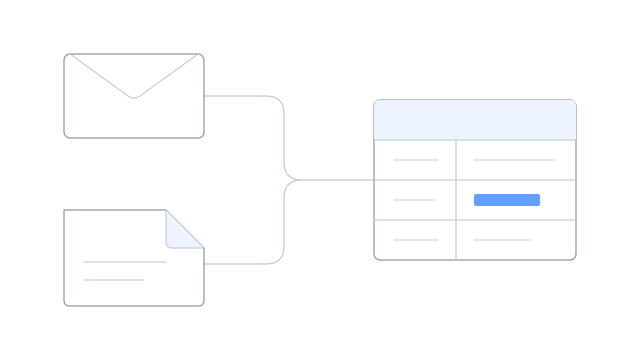
Compare order details, invoice amounts and delivery dates in one table, even when suppliers send them in different formats. Extract the fields you need, check them against the originals and keep supplier or contract details up to date as new information arrives.

From: updates@cedarworks.example

Delivery is planned for 18 October.

We'll confirm once it's on route.

Chosen field
Delivery date
Reviewed value
18 October
Review decision
Approved
Source
Cedar Works delivery update, 10 October
Check the delivery date beside the supplier email it came from.

Emails and files from different places

Bring the information together across inboxes and drives

A supplier’s revised delivery date may be in an email while the order lines are in a shared-drive file. Connect the mailboxes and folders your team uses so you can work with both. Choose which messages, files and web pages to include.

Connect an active account for later updates, or import a mailbox archive to work with earlier correspondence. You can also read files from an SFTP server without changing them. See supported connections for the accounts, file formats and locations you can use.

Different formats, comparable data

Compare the same details from different suppliers

Create a custom list of supplier emails from multiple inboxes, choose the documents to include and extract the details you want to compare: supplier, order reference, delivery date and amount. Bring them into one table even when one supplier sends a spreadsheet and another puts the information in an email.

Read details from consistent layouts

Choose a subject line, table column or labelled detail in supported document text or HTML to extract the same information each time. Turn repeated order lines into separate rows, with the supplier and order reference beside each one.

Reuse a setup for recurring emails

Use editable templates for emails that follow a familiar layout. Opt in to automatic discovery of recurring email layouts to create editable groups and extraction setups. Review and adjust them to suit your work.

Use AI when the wording varies

Use your organization’s connected AI model when the detail needs interpretation rather than a fixed position in a document. Preview the result and check important values against the original text, using the available evidence and confidence information to help with review.

Categories and checked values

Sort the work with categories, priorities and owners

Add a review category, priority or owner to help the team organize incoming work. Standardize values such as supplier names or status labels so you can compare them consistently. Choose how these fields are set; optional AI classification and summaries are available for emails and other source documents.

See how a category or priority was assigned and keep the original email or document intact. Your team uses those working details to decide what needs attention.

Check the amount or date before you use it

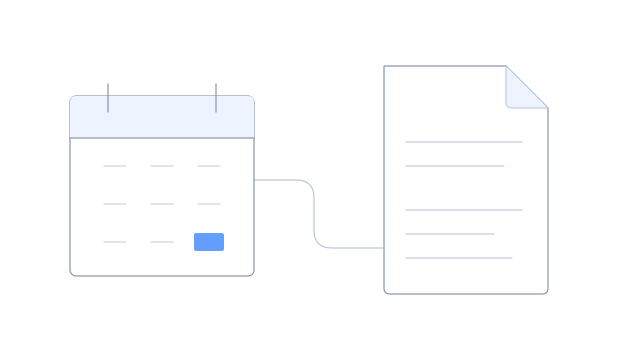
Read an extracted amount or date beside the email or document it came from. Correct the working value and record your review without changing the original. Assign a question to someone when a supplier’s wording needs clarification.

Choose whether a shared table includes accepted rows, rows awaiting review or both. You can accept extracted results automatically when that fits the task; when a person must check a value, use the recorded review decisions to confirm that step.

Use reviewed corrections in later processing and refreshed views when configured. A saved snapshot or spreadsheet someone already downloaded keeps the version they received.

Track the latest details and check earlier updates

Keep the latest supplier or contract details in one place

Build a supplier, contract or order profile from the updates your team receives. Choose how to match those updates to the right item and which information supplies its current details. A revised delivery date can replace the working date while the earlier promise and its email remain available.

When two updates disagree, inspect the messages behind the values and see why one is being used. Follow earlier changes when you need to explain how a date, price or term reached its current value.

Use the data to plan, share updates or answer questions

Use reviewed dates for deadline alerts, share supplier details through a customer view or spreadsheet, or give an AI assistant the information it needs to answer a question. Choose who receives each view and when it updates.

Start with the features your task needs. A searchable list of emails may be enough for a handover; add tables, current profiles or AI extraction when they help with the work.

Common questions

Can I compare information from suppliers who use different formats?

Yes. Choose the details you want in the table and use an extraction setup suited to each supplier’s emails or files. Their amounts, dates and references can appear in the same columns for comparison.

Does correcting a value alter its source?

No. You correct the extracted value and retain its review history. The original email or document stays unchanged and remains available under its existing access and retention settings.

What information can I extract?

Extract fields from supported email, attachment, file and web-page text, such as invoice amounts, order lines, dates and references. The available text depends on the file format and what your connected sources capture.

See your supplier updates in one useful table

Bring the emails or documents your team compares today. See how to extract the details, check an important value and use the result in your next review.